![logo_fidectus_4c-Dec-14-2021-07-11-26-75-PM.svg]](https://support.fidectus.com/hubfs/logo_fidectus_4c-Dec-14-2021-07-11-26-75-PM.svg)
Overview
The E-Signature feature in Fidectus GEN enables you to electronically sign incoming PDF confirmation documents through Skribble, a trusted e-signature provider. Once configured, documents are automatically sent to designated signers, their signing progress is tracked, and completed documents are returned to Fidectus GEN.
In this article:
-
Key benefits of e-signature
-
Prerequisites
-
Configuration
-
How it works
-
Legal signature levels
-
Signature statuses
-
Cancel or Reprocess
-
Common filters
-
Troubleshooting
- FAQ
- Additional resources
1. Key benefits of e-signature
- Automatically send incoming documents for signature
- Configure up to four signers per counterparty
- Select the required signature level (QES, AES, SES)
- Monitor signing progress
- Cancel or restart signature requests when required
🎥 Check out the demo of the e-signature here
2. Prerequisites
Before using E-Signature, ensure that:
- The E-Signature feature is enabled for your company.
- You have permission to edit Private Static Data.
- Your signers have valid email addresses.
Note: Signers do not need a Skribble account in advance. First-time users will be guided through a short registration process when they receive their first signing request.
3. Configuration
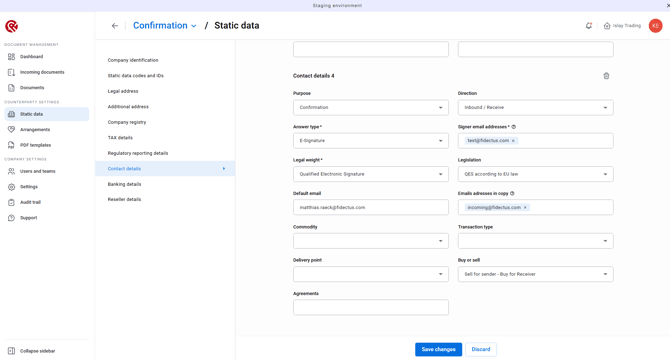
- Go to Private Static Data → Contact Details.
- Select a counterparty.
- Set Answer Type to E-Signature.
- Add 1–4 signer email addresses.
- Choose the signature quality.
- Select the applicable legislation (if required).
- Save the configuration.
4. How it works
Once a matching PDF is received:
- The document is sent to Skribble.
- Signers receive an email invitation.
- The document progresses through its signature statuses.
- When all signatures are complete:
- The signed PDF replaces the original.
- The completed document is automatically emailed to the sender.
5. Legal signature levels
| Signature Quality | Legal Weight | Typical Use Case |
|---|---|---|
| Qualified Electronic Signature (QES) | Highest – legally equivalent to handwritten signatures | Contracts and legally binding agreements |
| Advanced Electronic Signature (AES) | High | Business documents requiring strong authentication |
| Advanced Electronic Signature or Higher (AES_MINIMAL) | Flexible | When AES is required but QES is also acceptable |
| Simple Electronic Signature (SES) | Basic | Internal approvals and acknowledgements |
| Demo (DEMO) | None | Testing only |
Important: Do not use DEMO mode for production documents, as signatures created in DEMO mode have no legal validity.
For QES, AES, or AES_MINIMAL signatures, select the appropriate legal framework:
- eIDAS – European Union
- ZertES – Switzerland
All future PDF documents received from this counterparty will automatically enter the E-Signature workflow.
6. Signature Statuses
| Status | Description |
| SIGNATURE OPEN | Waiting for the first signature |
| IN SIGNING | At least one signer has signed; others are still pending |
| SIGNED | All signatures completed successfully |
| WITHDRAWAL REQUESTED | Cancellation is being processed |
| WITHDRAWN | Signature request successfully cancelled |
| DECLINED | A signer declined to sign |
| ERROR | An error occurred during processing |
7. Cancel or Reprocess
You can:
- Cancel a request while signatures are still pending.
- Reprocess requests that were withdrawn, declined, or ended with an error.
📷 Step-by-step guide: Show where the Cancel and Reprocess buttons are located.
-
-
Common Reasons to Reprocess
- A request was cancelled accidentally.
- A signer is now ready to sign after previously declining.
- A temporary technical issue occurred.
- A signing invitation needs to be resent.
-
8. Common Filters
| Requirement | Status Filter |
| Waiting for signatures | SIGNATURE OPEN, IN SIGNING |
| Fully signed documents | SIGNED |
| Documents requiring attention | DECLINED, ERROR |
| Cancelled requests | WITHDRAWN |
9. Troubleshooting
Signers Are Not Receiving Emails
-
Possible Causes
- Incorrect email address
- Messages filtered as spam
- Email security rules blocking Skribble messages
-
Resolution
- Verify configured email addresses.
- Check spam or junk folders.
- Allow emails from Skribble.
- Reprocess the request to resend notifications.
Signer Cannot Access the Document
-
Possible Causes
- Expired signing link
- Incorrect email address
- Browser-related issues
- Resolution
- Reprocess the signature request.
- Verify the signer's email address.
- Try a different browser.
- Ensure Skribble registration has been completed.
Status Shows ERROR
-
Possible Causes
-
Temporary connectivity issues
-
Incomplete configuration
-
Service interruption
-
Unsupported PDF format
-
- Resolution
-
Reprocess the request.
-
Verify all required configuration settings.
-
Contact support if the issue persists.
-
- Possible Causes
- Feature not enabled for your company
- Missing permissions
- Resolution
- Contact your Fidectus GEN administrator or support team.
10. Frequently Asked Questions
Do I need a Skribble account?- No. Signers will be guided through registration when they receive their first signing request.
- Yes. Depending on the selected signature quality and legislation, electronic signatures can have the same legal validity as handwritten signatures.
Can I change the signer configuration later?
- Yes. Changes affect future documents only and do not impact documents already in the signing process.
- Yes. Each counterparty can have its own signers, signature quality, and legislation.
- The document status changes to DECLINED and the signing process stops until the request is reprocessed.
- No. Signers are fixed once a document enters the signing workflow.
- After completion, the original document is replaced with the signed version, including the signature certificate information provided by Skribble.
- Yes. Fidectus GEN records all signature-related events, including initiation, signing, cancellations, and reprocessing actions.