![logo_fidectus_4c-Dec-14-2021-07-11-26-75-PM.svg]](https://support.fidectus.com/hubfs/logo_fidectus_4c-Dec-14-2021-07-11-26-75-PM.svg)
It is designed to better understand the context of energy trading documents, improve data extraction, and enable automated processing without requiring a manual check for every document before release.
Key benefits:
- Improved data extraction: AI-powered processing designed specifically for energy trading documents.
- Faster processing: Automated document processing helps reduce delays caused by manual review.
- Minimal changes: documents continue to be sent and received as before. Only a one-time business rule setup is needed.
- EU-based data processing: All data processing and storage, including processing by OpenAI, takes place entirely within the EU.
1. Business Rule Configuration
To ensure that Fidectus Prime AI extracts and maps the relevant information correctly, the required business rules must be configured in GEN.
This setup needs to be configured initially and updated whenever relevant changes occur, for example, if a counterparty changes its EIC code or the name used in the incoming document changes.
The following four fields need to be configured: SenderID, BuyerID, SellerID, Delivery Point
How to Configure Business Rules in GEN?
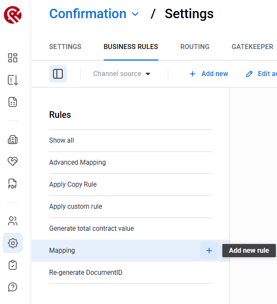
Settings -> Business Rules -> Mapping -> Add new rule
You can customize the business rule title to make it easier to identify which field it applies to (e.g., SenderID, BuyerID, SellerID, or DeliveryPoint).
How name matching works:
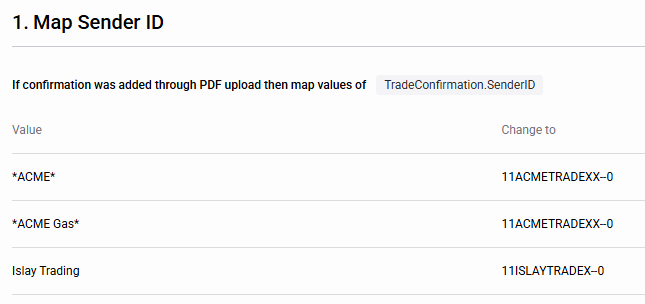
The business rule checks the full text in the field. If you enter a name without asterisks (e.g. ACME), the text in the document must match exactly.
If you place the name between asterisks (e.g. *ACME*), the rule only needs to find that word somewhere in the text. This means “ACME Gas” and “ACME Power” will both be recognised and mapped to the same EIC code (unless you create another rule to differentiate the 2 names).
Please note that matching is case-sensitive, so the name should be written with the same capital letters as on the PDF confirmation.
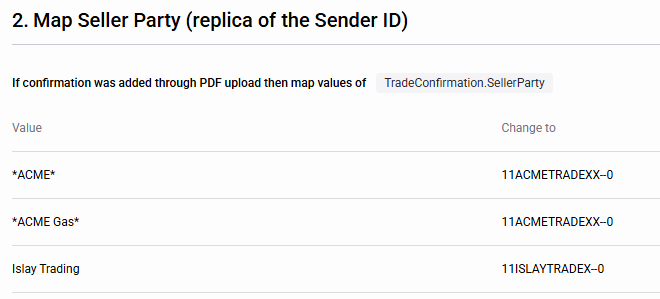
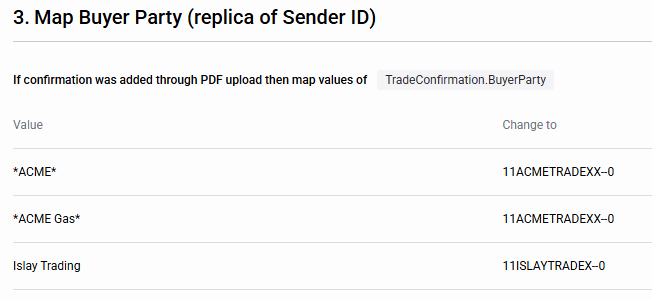
Below, you’ll find configuration examples for each business rule, which we recommend using as a guideline when setting up your rules.
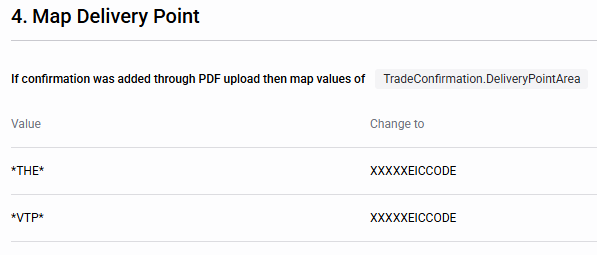
Important configuration notes:
- These business rules must apply to PDF documents only.
- Additional business rules may be required for new counterparties, document formats, or processing scenarios.
- Document Usage oes not need to be configured as a separate business rule, as Fidectus Prime AI maps this field automatically.
2. Testing & Validation
Once your business rules are configured, we recommend validating the setup in your Staging environment before applying it in Production. This helps ensure that your documents are processed exactly as expected.
We recommend:
- Uploading representative (incoming) PDF confirmations from your most relevant counterparties.
- Checking that the four fields (SenderID, BuyerID, SellerID and DeliveryPoint) are extracted and mapped correctly.
- Confirming that the documents reach GEN and move through your expected workflow.
Please note: If a test document doesn’t appear as expected, please check the counterparty static data exists for that counterparty and the business rules.
If any adjustments are needed, simply update the relevant business rules and repeat the tests. Once everything works as expected in Test, the same configuration can be applied in Production.
3. Ongoing Maintenance
Keep your business rules up to date as your document processing requirements evolve.
Additional rules may be needed when:
- You start receiving PDF confirmations from new counterparties.
- A counterparty changes its document format.
- New document types or processing scenarios are introduced.
If you need assistance with configuration or ongoing maintenance, please contact your Fidectus Customer Success Manager or our Support team at support@fidectus.com.